Use your SWAPCALA live feed as a camera
A website cannot register itself as a camera device — browsers only list real cameras your computer exposes. OBS Studio bridges the gap: it captures the SWAPCALA live swap window and publishes it as a virtual camera that WhatsApp Web, Zoom, Google Meet and Teams can select. The whole setup takes about five minutes.
Step by step
1.Install OBS Studio
Download OBS Studio (free, Windows / macOS / Linux) from obsproject.com. Install it and launch it once — you can skip the auto-configuration wizard.
2.Import the SWAPCALA scene (optional but fastest)
Download the config below, then in OBS choose Scene Collection → Import, pick the downloaded file and select the new SWAPCALA Virtual Camera collection. It ships with a 1280×720 / 30 fps canvas and a ready-made window capture, so you only need to point it at your browser.
3.Add a Window Capture source
In the Sources panel click + and choose Window Capture. On macOS grant Screen Recording permission when prompted, then restart OBS.
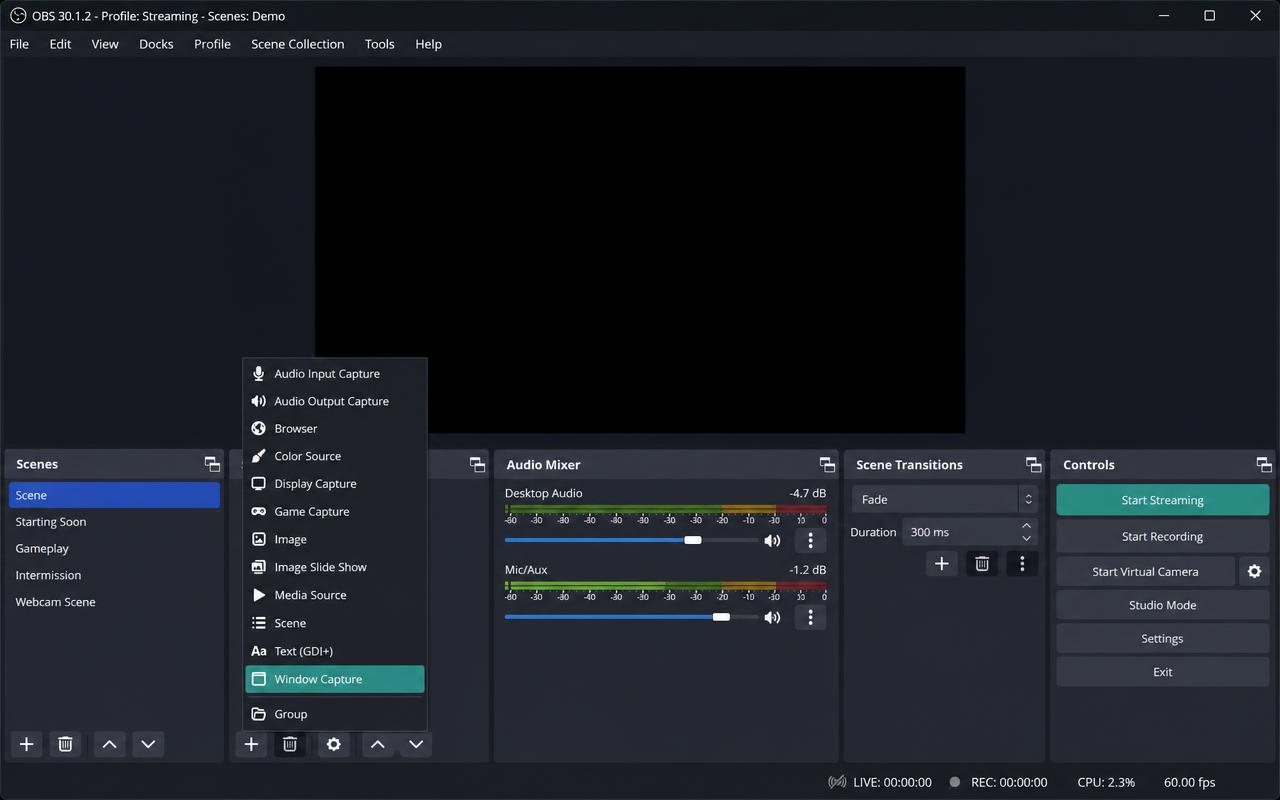
4.Pick your SWAPCALA browser window
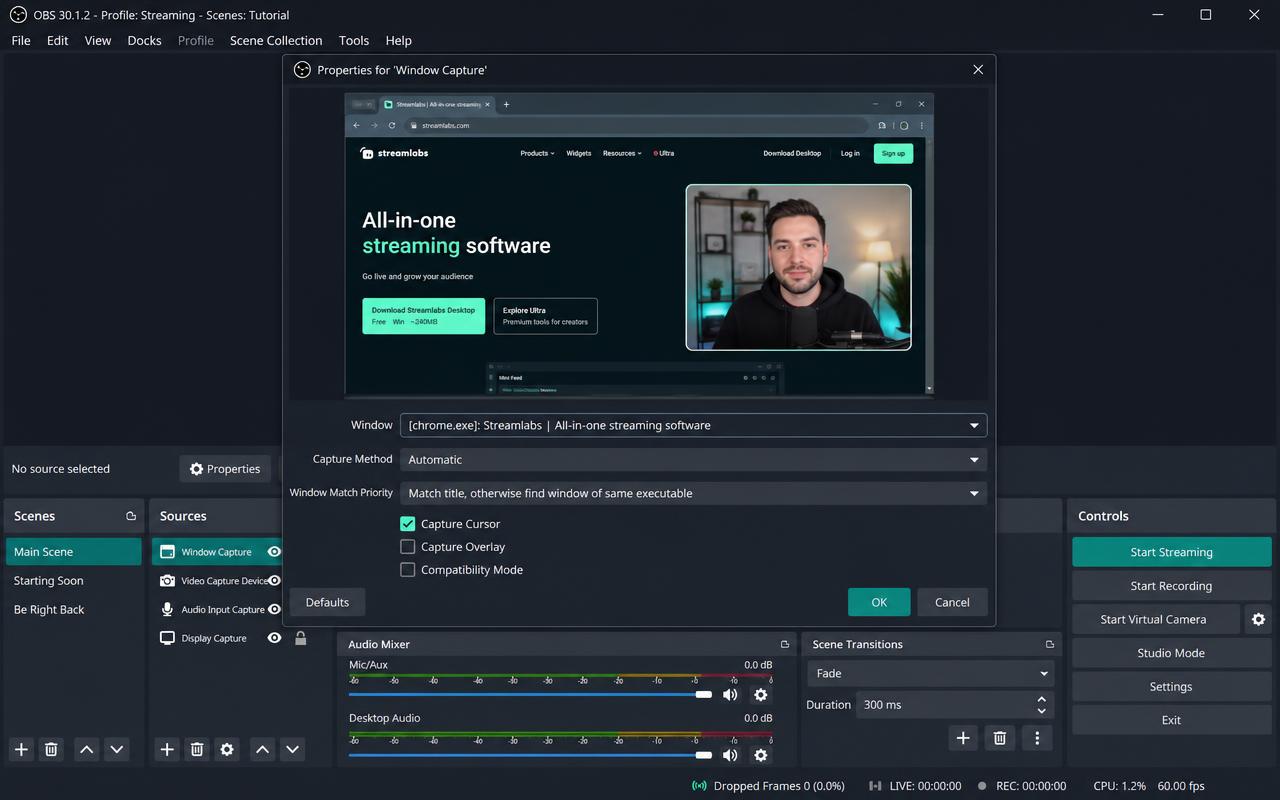
In the properties dialog select the browser window running SWAPCALA. Back on the live page, press Broadcast view for a clean full-screen feed, then in OBS right-click the source and choose Resize output to source or Fit to screen so the face fills the frame.
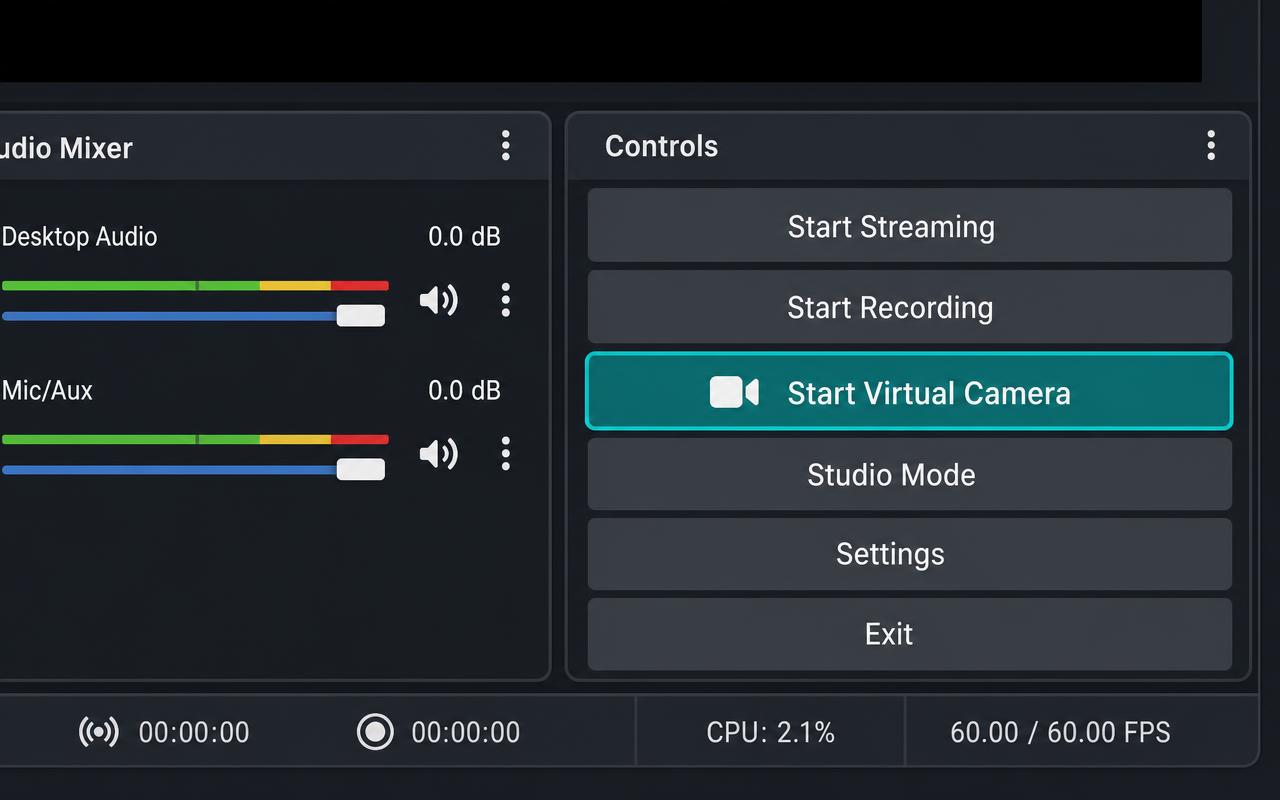
5.Start the Virtual Camera
In the Controls panel click Start Virtual Camera. Leave OBS running — the camera only exists while the button is active.
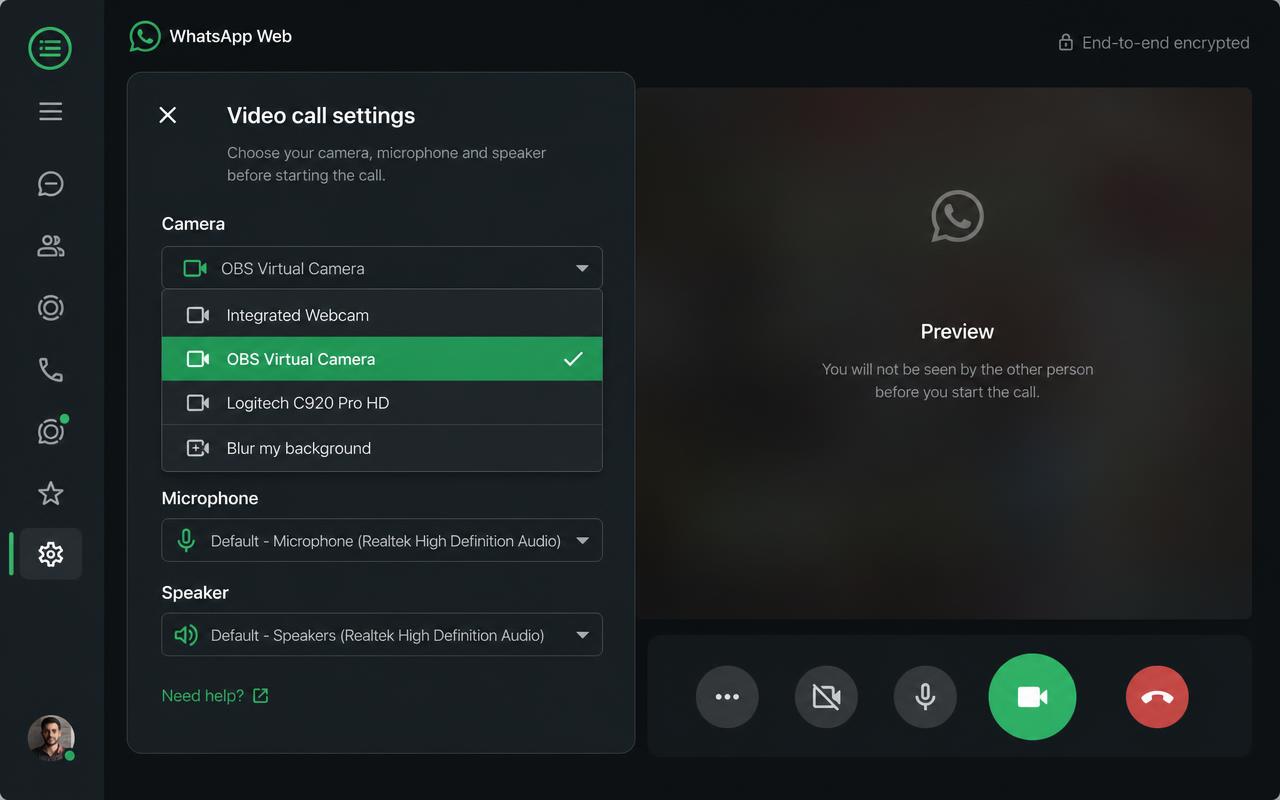
6.Select it in WhatsApp Web
Fully reload WhatsApp Web (⌘/Ctrl + R) so it re-scans devices, open call settings and choose OBS Virtual Camera. The same device shows up in Zoom, Google Meet, Teams and Discord.
Troubleshooting
- OBS Virtual Camera is missing from the list
- Reload the browser tab completely after starting the virtual camera — browsers cache the device list. On Windows, run OBS once as administrator so it can register the camera driver.
- The capture is black
- Switch the Window Capture method to Windows 10 (1903 and up) on Windows, or grant Screen Recording permission in System Settings → Privacy & Security on macOS, then restart OBS.
- The feed is laggy
- Close other GPU-heavy tabs, drop the OBS canvas to 1280×720 at 30 fps (Settings → Video), and keep the SWAPCALA tab visible — browsers throttle hidden tabs.
- The image is mirrored
- Right-click the source → Transform → Flip Horizontal.
- Phones
- WhatsApp on iOS and Android does not accept virtual cameras. Use WhatsApp Web on a desktop with OBS.
Use SWAPCALA responsibly — see our terms. Never impersonate someone without their consent.